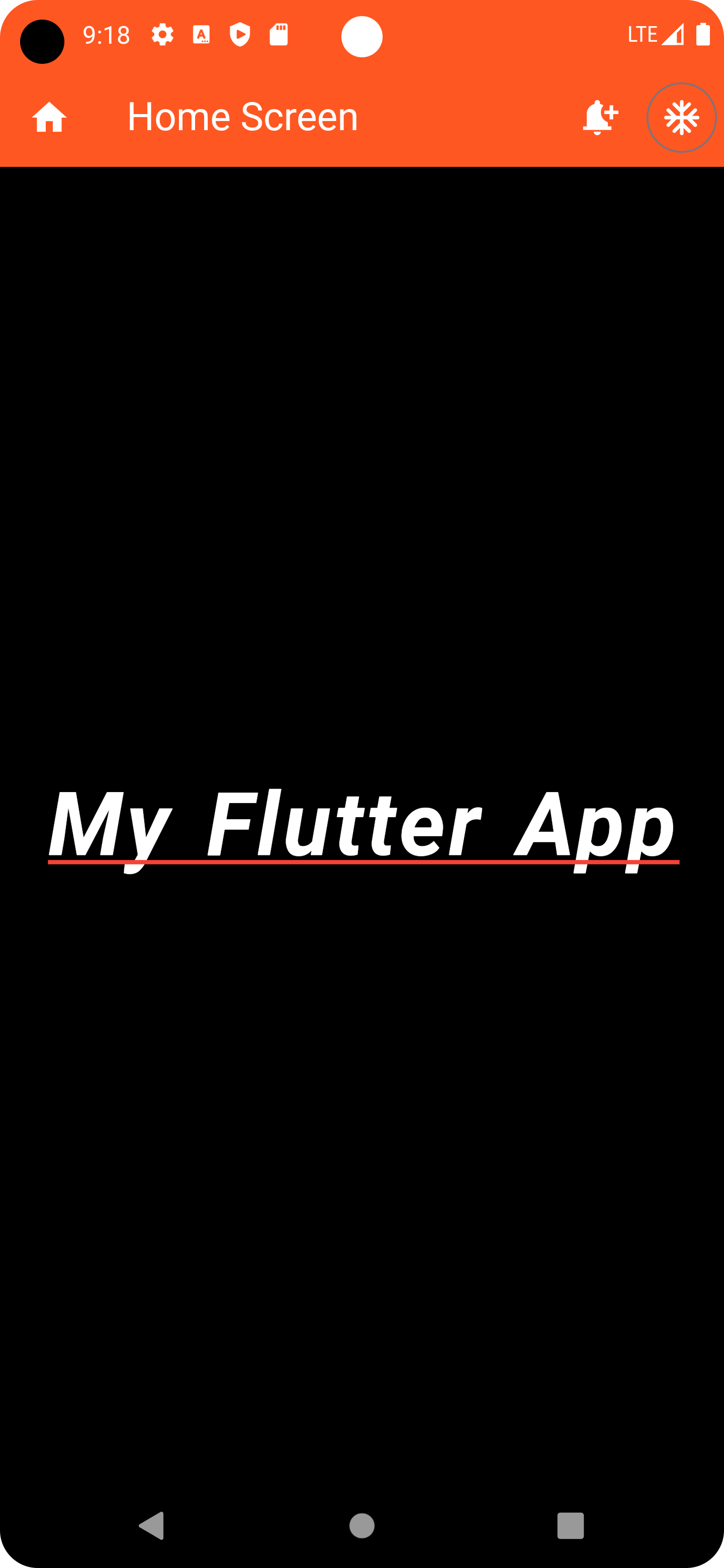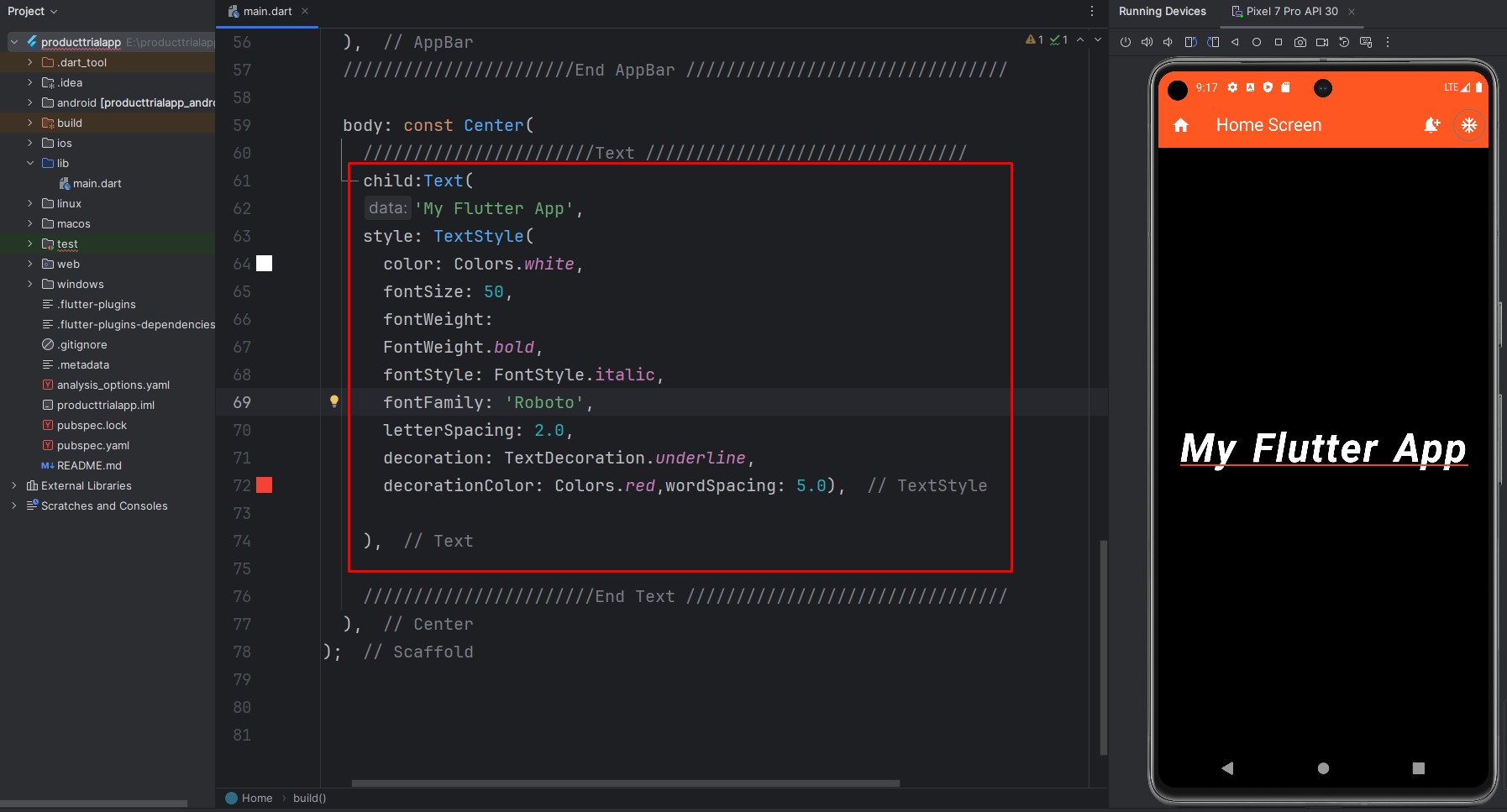
Code
import 'package:flutter/cupertino.dart';
import 'package:flutter/material.dart';


void main() {
  runApp(const MyApp());
}

class MyApp extends StatelessWidget {
  const MyApp({super.key});

  @override
  Widget build(BuildContext context) {
    return MaterialApp(
      debugShowCheckedModeBanner: false,
      title: 'E-Commerce App',
      theme: ThemeData(primarySwatch: Colors.blue,),
      home: const Home(),
    );
  }
}

class Home extends StatelessWidget{
  const Home({super.key});

  @override
  Widget build(BuildContext context) {
    return Scaffold(
      backgroundColor: Colors.black.withOpacity(0.5),

      ///////////////////////AppBar ////////////////////////////////
      appBar: AppBar(
        backgroundColor: Colors.deepOrange,
        title: const Text('Home Screen', style: TextStyle(color: Colors.white),),
        leading: const Icon(Icons.home, color: Colors.white,),
        actions: [
          IconButton(onPressed: () {
            ScaffoldMessenger.of(context).showSnackBar(
              const SnackBar(
                backgroundColor: Colors.deepOrange,
                duration: Duration(milliseconds: 500),
                content: Text('Al Saad Bi Honey'),
              ),
            );
            }, icon: const Icon(Icons.notification_add, color: Colors.white,)
          ),
          IconButton.outlined(onPressed: (){
            showDialog(context: context, builder: (context){
              return const AlertDialog(
                title: Text('Honey'),
                content: Text('Al Saad Bin Rahaman'),
              );
            });
          }, icon: const Icon(Icons.ac_unit_rounded, color: Colors.white,)),
        ],
      ),
      ///////////////////////End AppBar ////////////////////////////////

      body: const Center(
        ///////////////////////Text ////////////////////////////////
        child:Text(
        'My Flutter App',
        style: TextStyle(
          color: Colors.white,
          fontSize: 50,
          fontWeight:
          FontWeight.bold,
          fontStyle: FontStyle.italic,
          fontFamily: 'Roboto',
          letterSpacing: 2.0,
          decoration: TextDecoration.underline,
          decorationColor: Colors.red,wordSpacing: 5.0),

        ),

        ///////////////////////End Text ////////////////////////////////
      ),
    );
  }
}
To use custom fonts, you'll need to:
- Add your font files (usually
.ttfor.otffiles) to your Flutter project. - Update your
pubspec.yamlfile to include the font files and specify the font family name. - Use the specified font family name in the
fontFamilyproperty of theTextStyleclass.
Here’s an example pubspec.yaml configuration for adding a custom font:
flutter:
  fonts:
    - family: MyCustomFont
      fonts:
        - asset: fonts/my_custom_font_regular.ttf
        - asset: fonts/my_custom_font_bold.ttf
          weight: 700
After registering the custom font, you can use it in your code like this:
///////////////////////Text ////////////////////////////////
        child:Text(
        'My Flutter App',
          style: TextStyle(
          color: Colors.white,
          fontSize: 50,
          fontWeight:
          FontWeight.bold,
          fontStyle: FontStyle.italic,
          fontFamily: 'MyCustomFont',
          letterSpacing: 2.0,
          decoration: TextDecoration.underline,
          decorationColor: Colors.red,wordSpacing: 5.0),

        ),

///////////////////////End Text ////////////////////////////////
Make sure to replace
'MyCustomFont' with the name you specified in your pubspec.yaml file. Output