- Download and Install Android Studio:
- Go to the Android Studio website and download the latest version of Android Studio.
- Follow the installation instructions for your operating system (Windows, macOS, or Linux).
- Install Flutter SDK:
- Go to the Flutter website and download the latest stable release of the Flutter SDK for your operating system.
- Extract the downloaded Flutter SDK zip file to a location on your computer where you intend to keep it permanently.
- Set Up Flutter SDK Path:
- After extracting the Flutter SDK, add the Flutter SDK
bindirectory to your system PATH. This is necessary for running Flutter commands from the terminal. - For example, on Windows, you can set the PATH by going to Control Panel > System and Security > System > Advanced system settings > Environment Variables, and then editing the PATH variable to include the Flutter
bindirectory. - On macOS or Linux, you can edit your
.bash_profileor.bashrcfile to add the Flutterbindirectory to your PATH.
- After extracting the Flutter SDK, add the Flutter SDK
- Install Flutter and Dart Plugins in Android Studio:
- Open Android Studio.
- Go to File > Settings (or Android Studio > Preferences on macOS).
- In the left pane, select Plugins.
- Search for “Flutter” and “Dart” plugins in the Marketplace.
- Install both plugins and restart Android Studio when prompted.
- Configure Flutter SDK in Android Studio:
- After restarting Android Studio, go to File > Settings (or Android Studio > Preferences on macOS).
- In the left pane, select Languages & Frameworks > Flutter.
- Click on the + icon and navigate to the location where you extracted the Flutter SDK.
- Select the Flutter SDK directory and click OK.
- Create a New Flutter Project:
- After setting up Flutter SDK in Android Studio, you can create a new Flutter project.
- Go to File > New > New Flutter Project.
- Follow the prompts to set up your project details like project name, description, and location.
- Once the project is created, Android Studio will automatically download any necessary dependencies.
- Run Your Flutter App:
- Connect an Android device or start an Android emulator.
- In Android Studio, select your Flutter project from the project navigator.
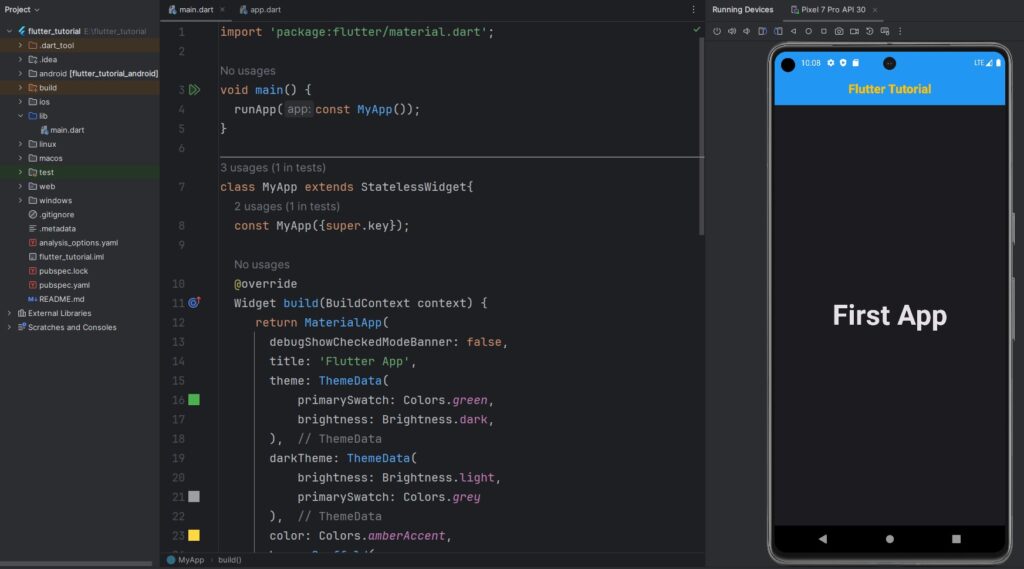
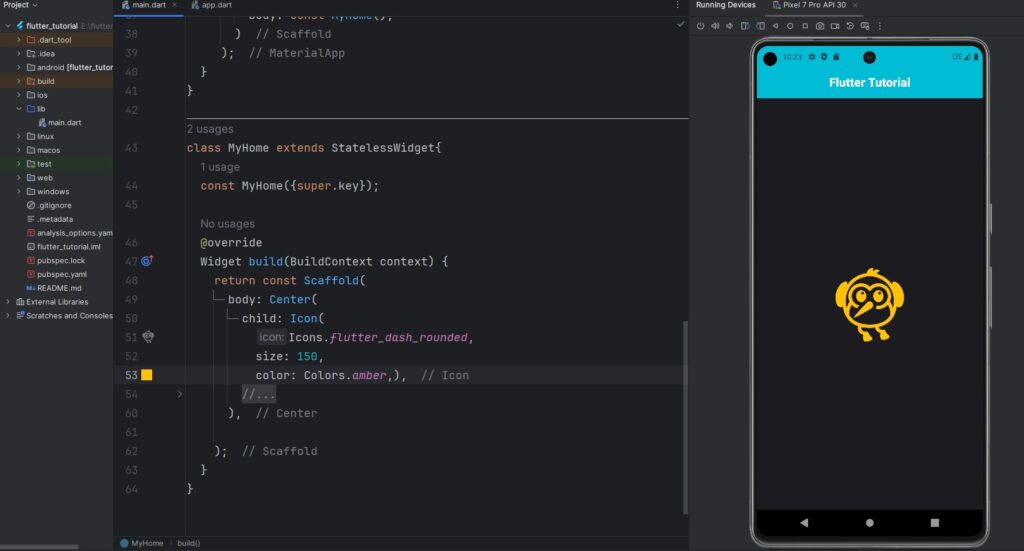
- Click on the green play button (or Run > Run ‘main.dart’) to run your Flutter app on the connected device or emulator.
That’s it! You’ve successfully installed Flutter in Android Studio and created your first Flutter project. You can now start developing Flutter apps using Android Studio.